Using Pressbooks with Brightspace
17 Importing a Book into Brightspace
You may want to add an open textbook—whether authored by you or by someone else—to Brightspace.[1] With course cartridges (also known as IMS Common Cartridge or just Common Cartridge), you can do just that.
Course cartridges are designed to be imported into an institutional LMS like Brightspace, allowing learners to access open textbook content without having to leave the LMS. Course cartridges also give instructors some limited customization opportunities in that you can reorder chapters of the book within your LMS or hide textbook content that is not relevant to your learners using the functions within your LMS.
In this chapter, you will learn how to find and export the course cartridge of a book on the Pressbooks platform.
What Is a Course Cartridge?
A course cartridge is a standardized way of packaging and exchanging digital learning materials based on the IMS Thin Common Cartridge web links standard. The course cartridge is a special file that can be downloaded from a textbook and imported into a course shell on Brightspace. The course cartridge contains links to the online version of the book, with each link leading a student to a section or module within it. Because these links appear as modules in Brightspace, you can adjust them within Brightspace, setting specific release dates for them, rearranging their order, or hiding or deleting content you are not using.
Limitations of Course Cartridges
While you do have some flexibility to rearrange chapters or sections of the book within Brightspace as described above, you cannot edit the contents of the book. Making such edits as changing the text or adding, changing, or removing specific images is not possible because the common cartridge does not make a copy of the book within Brightspace.
Also, the availability of course cartridges varies by book. Not all books on the Pressbooks platform are available as course cartridges. Of course, you can make a book you have authored available as a course cartridge if you export your book as Common Cartridge with Web Links as described below.
Finding and Downloading a Common Cartridge File
If a book on the Pressbooks platform is available as a course cartridge, you will find the download link for the file under the book cover image displayed on the book’s home page. For example, here is the home page of CUNY SPS Accessibility Toolkit by Kelly Hammond.
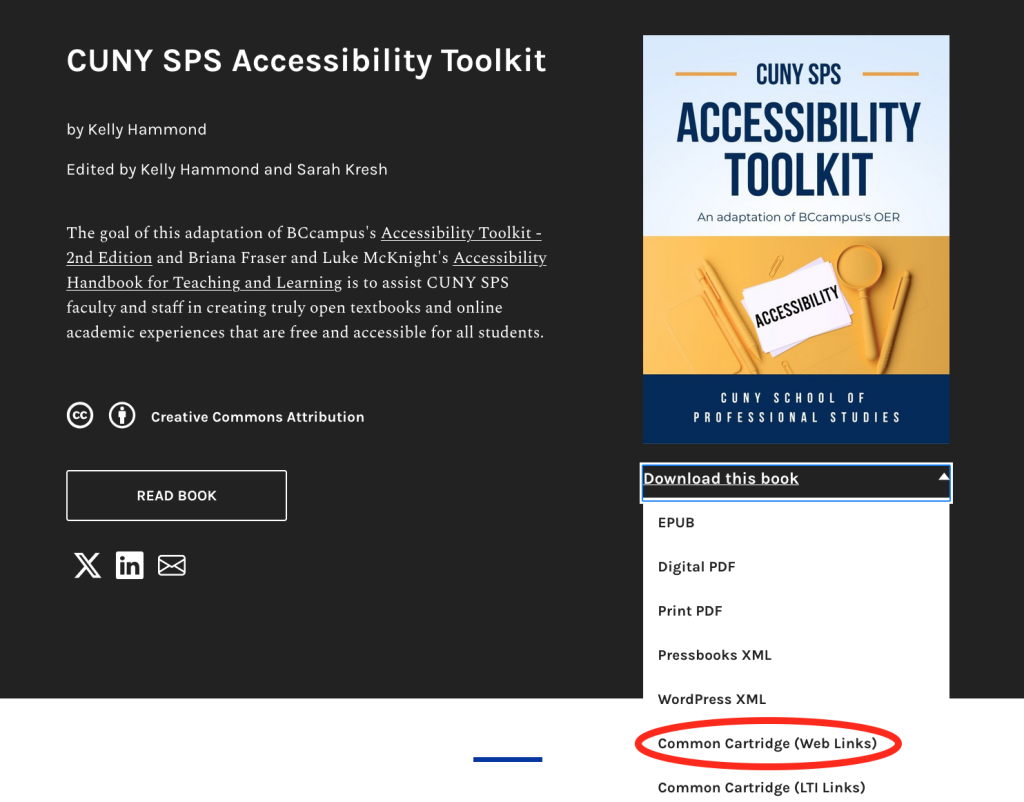
Notice the item Common Cartridge (Web Links) in the Download this book menu under the book cover image. Click this selection and save the file to your own computer. The file will have a file extension of .imscc, designating it as an IMS Common Cartridge file.
Exporting Your Book as Common Cartridge with Web Links
To make your own book available as a course cartridge, you need to export the book as export your book as Common Cartridge with Web Links. Doing so is simple.
- Click Export in the admin dashboard of your book.
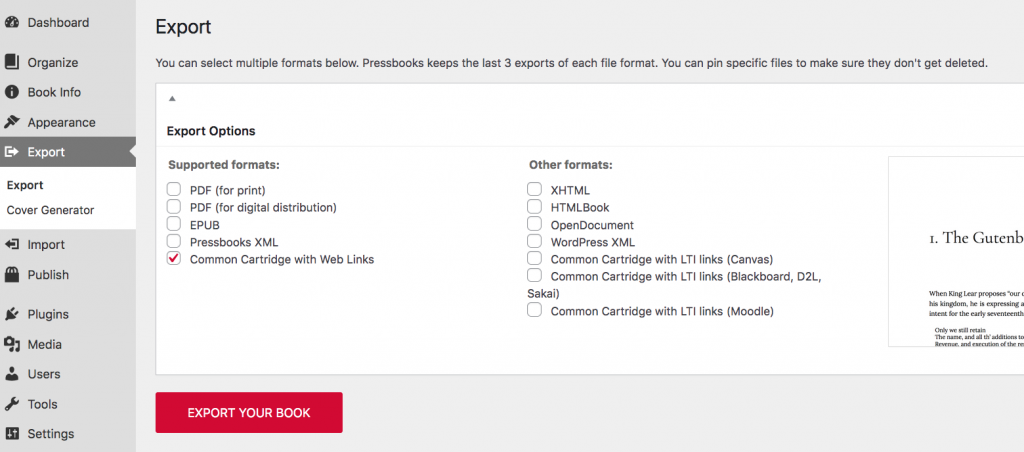
- Select Common Cartridge with Web Links from the Export Options panel, as pictured in the screenshot below.
- Click the Export Your Book button and wait for the file to appear in the list of Latest Exports.
To download the file for your own use, hover over the Imscc file in the Latest Exports list and click Download.
 For more information on creating exports, including Common Cartridge with Web Links exports, see the chapter Export Your Book in the Pressbooks User Guide.
Adding the Common Cartridge File to Brightspace
Once you have the cartridge saved on your computer, log into Brightspace and follow then the instructions given in the Brightspace support documentation Import, export, or copy course components.
- This chapter is based on the chapter Import an Open Textbook into a LMS by Clint LaLonde in the BCcampus Open Education Pressbooks Guide, published under a Creative Commons Attribution 4.0 International License. Revisions have been made in accord with the style and structure, and audience of this guide, particularly to make examples more specific to CUNY. ↵